Configure SCIM - JumpCloud
This guide describes how to configure Row Zero with JumpCloud using SCIM (System for Cross-domain Identity Management). Once set up, any users or groups assigned to the application in JumpCloud will automatically sync to Row Zero.
NOTE: Before configuring SCIM, configure the SSO solution first (SSO - SAML (JumpCloud) or SSO - OIDC (JumpCloud)).
Here is the information that you will need to configure a Row Zero SCIM application in JumpCloud:
-
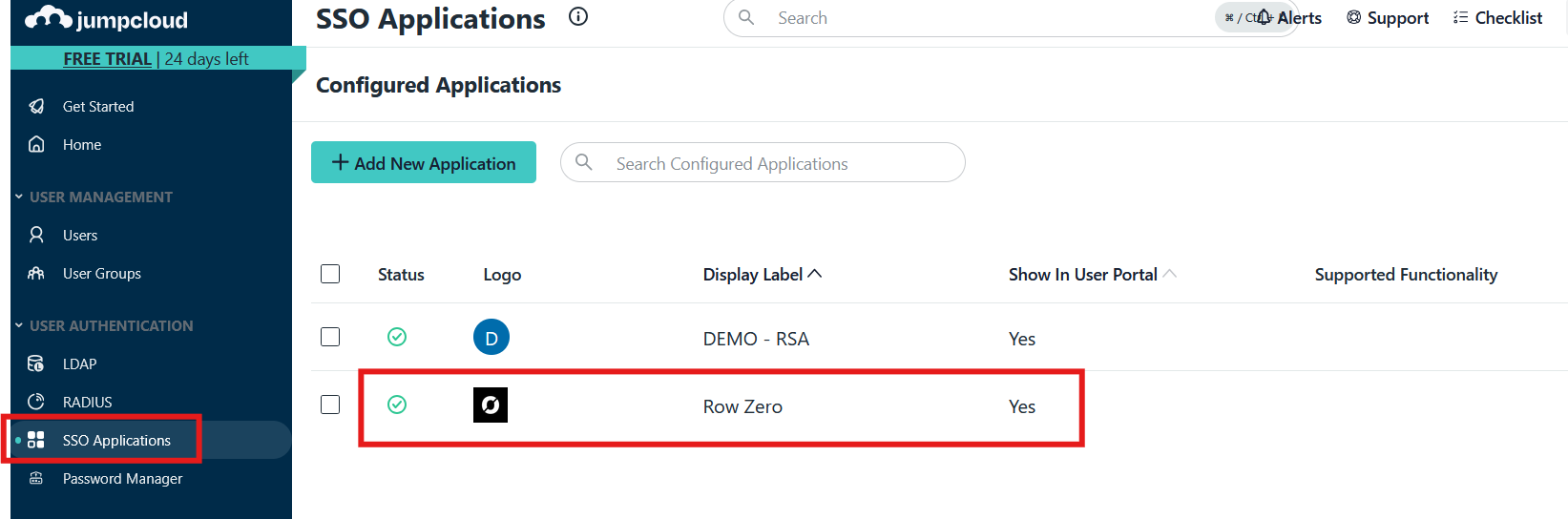
In JumpCloud under the "SSO Applications" tab, click on the "Row Zero" application:
-
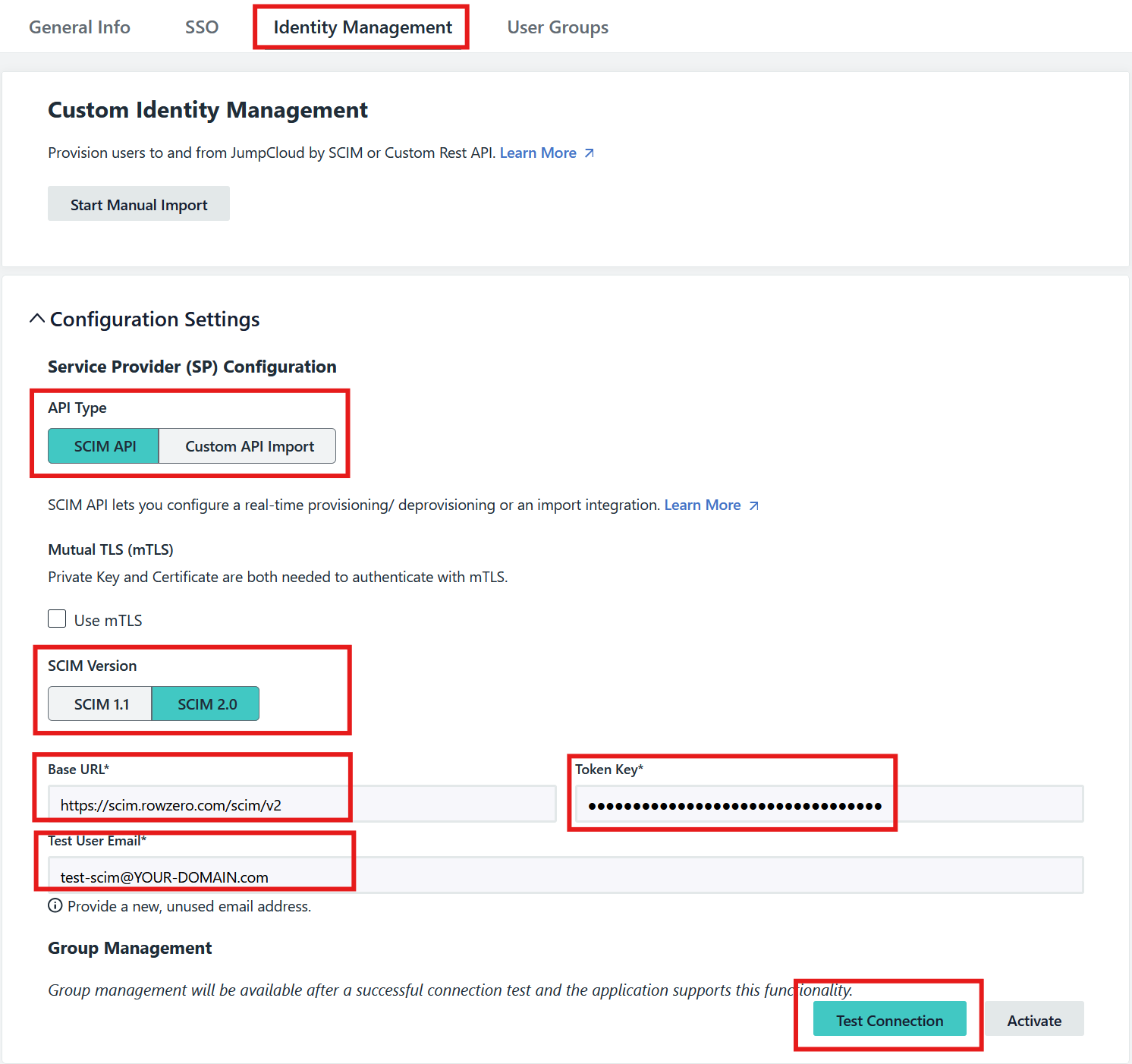
On the "Identity Management" tab, under "Configuration Settings" configure the following:
-
For API Type select
SCIM API -
For SCIM Version select
SCIM 2.0 -
For Base URL enter
https://scim.rowzero.com/scim/v2 -
For Token Key contact Row Zero Support for your unique token
-
For Test User Email enter
test-scim@YOUR-DOMAIN.com(replaceYOUR-DOMAINwith your enterprise domain) -
Click the "Test Connection" button
-
-
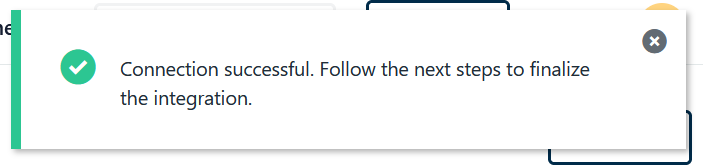
Verify that the "Test Connection" was successful:
-
Under "Group Management", check "Enable management of User Groups and Group Membership in this application.":

-
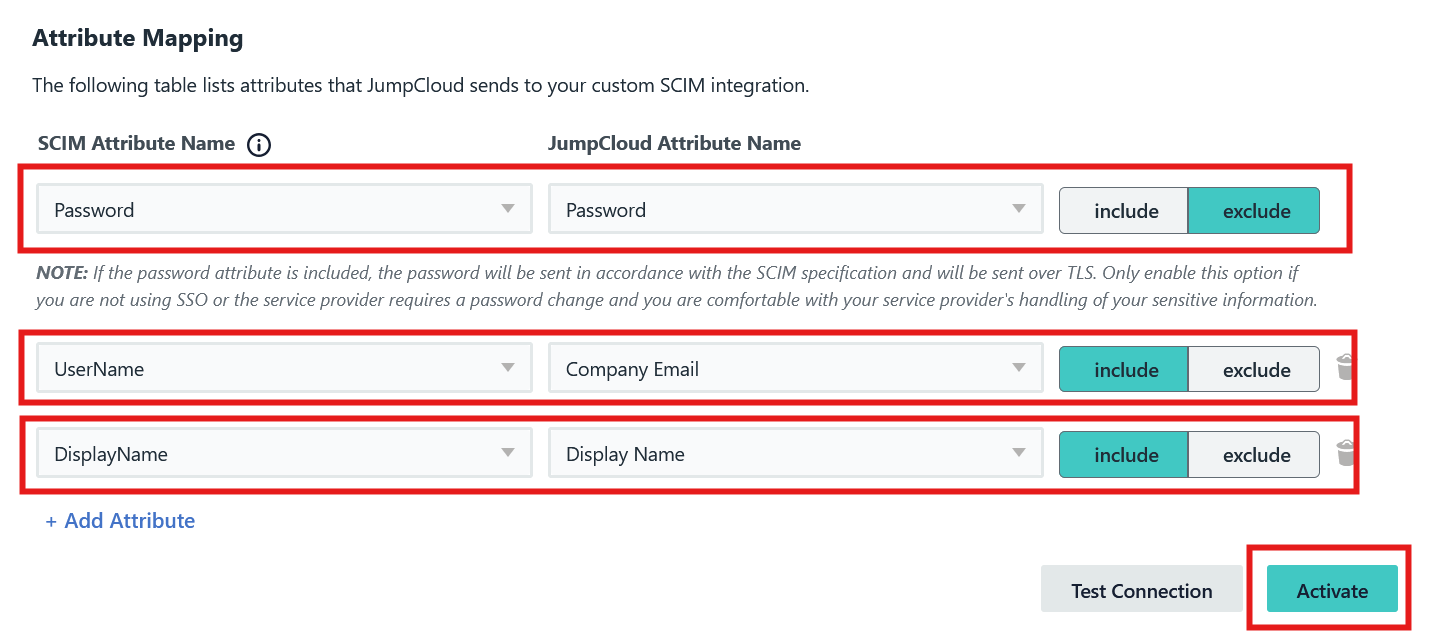
Under "Attribute Mapping", configure the following:
-
For the "Password" mapping, select "Exclude"
-
Add a "Username" mapping, select "Include"
-
Add a "DisplayName" mapping, select "Include"
-
Click the "Activate" button:
-
-
Click the "Start Manual Import" button:

-
If you've already assigned users for SSO, select those users and click the "Import" button. Any users added to the applicaiton moving forward will automatically be imported through the SCIM endpoints.