Connect Teradata to Row Zero
Row Zero's built-in Teradata connector makes it easy to connect your spreadsheets to Teradata. Follow the instructions below to connect to Teradata, share your connection with others, and import data to a spreadsheet.
Create your Teradata connection
The Teradata connector supports two result delivery modes:
- Staged - Recommended for larger datasets and better performance. Staged mode requires a Bring Your Own Bucket configuration, where query
results are staged through an AWS S3 bucket that you control. Before creating a Staged connection, set up an S3 bucket and IAM role by following the Bring Your Own Bucket setup guide. - Streaming - Intended for smaller datasets. Streaming mode retrieves data directly to your workbook and only requires host, port, username, and password.
To create a new connection:
-
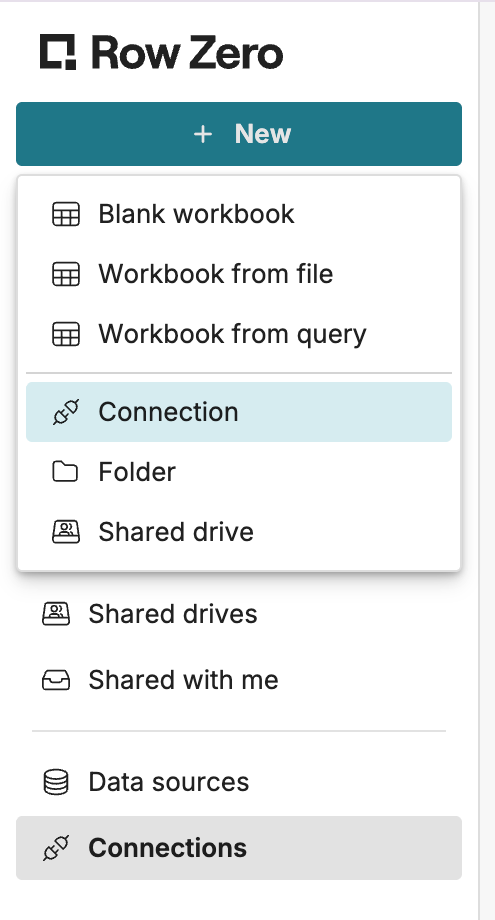
From your Row Zero homepage, click + New in the upper left corner and then choose Connection.
-
Choose Teradata.
-
Select your result delivery mode (Staged or Streaming), then fill in the required fields:
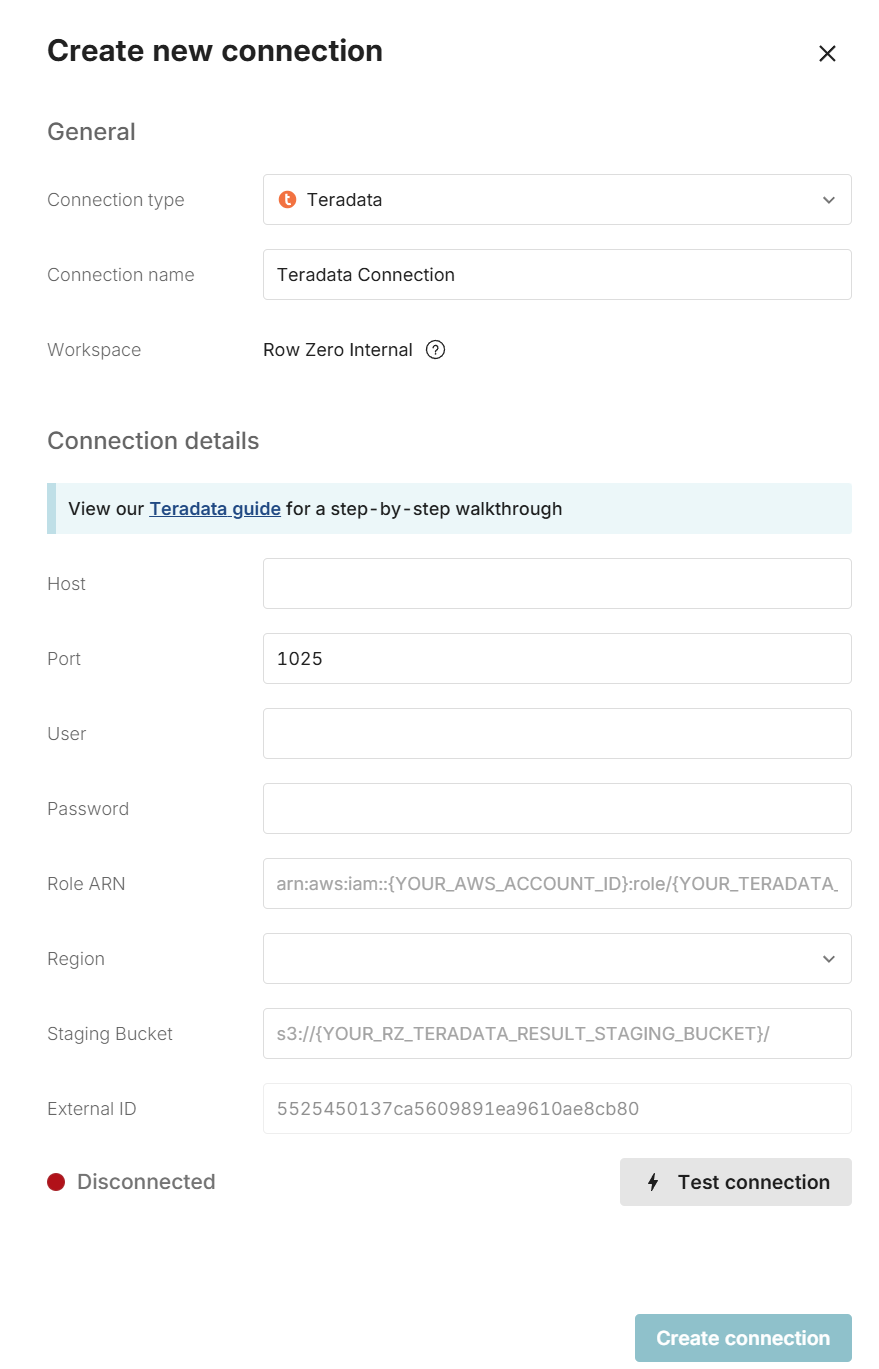
- Connection name - This field can be anything that helps identify the data source being connected (e.g. "Production Data" or "Product Metrics"). It will be visible to all users who have access to this connection.
- Result delivery mode - Choose Staged for larger datasets and better performance, or Streaming for smaller datasets with simpler setup.
- Host - This is the Teradata server address that typically takes the form of a string like 'teradata.mydomain.com'.
- Port - This is often 1025.
- User - This is the username for your Teradata database.
- Password - The password used to log into your Teradata database.
- The following fields are required only for Staged mode:
- S3 Bucket - The name of the staging bucket you created during the Bring Your Own Bucket.
- Region - The AWS region of your staging bucket.
- IAM Role ARN - The ARN of the IAM role you created during the Bring Your Own Bucket.
-
Once all the information is entered, hit 'Test connection' to ensure the information is correct. If the test connection icon turns green and says 'Connected', proceed by clicking on 'Create Connection'.
Note: If your database is behind a VPN or firewall, you'll need to allow the Row Zero IP addresses: 18.217.97.112 and 18.224.119.220.
Share your connection with other users
If you would like other users to be able to use this connection to query Teradata from Row Zero, you can securely share the connection with them in Row Zero. This is appropriate if multiple users share a service account. To share your connection in Row Zero:
- Navigate to your Connections page.
- Find the Connection that you'd like to share, click '...' next to the name of the connection, and select 'Manage sharing'.
- Enter the emails of the users or groups that should have access to this connection.
Write a query to import Teradata data
Now that have created a Teradata connection, you can import data by writing queries directly from Row Zero. See Data Import to learn how.